
F5 Application Traffic Insight
Objective
This guide presents the end-to-end process for enabling and using F5 Application Traffic Insight (ATI), for those utilizing the JS Tag deployment method. For instructions on ATI deployment using either the BIG-IP iApp or NGINX methods, see Deploy ATI on Your Web Application.
Using the instructions provided in this guide, you can enable ATI functionality, generate a JavaScript tag, add it to your application, and monitor data in F5® Distributed Cloud Console.
Prerequisites
You must have a valid F5® Distributed Cloud Console Account. If you do not have an account, see Get Started with Distributed Cloud Console.
Enable and Use ATI
Perform the following steps to enable and use ATI:
Step 1: Enable ATI and inject the ATI JS on your application's web pages.
-
In the Distributed Cloud Console home page, click
Application Traffic Insight. -
In the ATI enablement page that appears, click
Enable Application Traffic Insight.

Figure: Enable ATI
- In the
Select Regionscreen that appears, select the region that best matches your customer base and then clickNext. The region you select here determines where data is stored and processed.
Note: The region you select here cannot be changed later and will be valid for all applications that you configure on ATI.
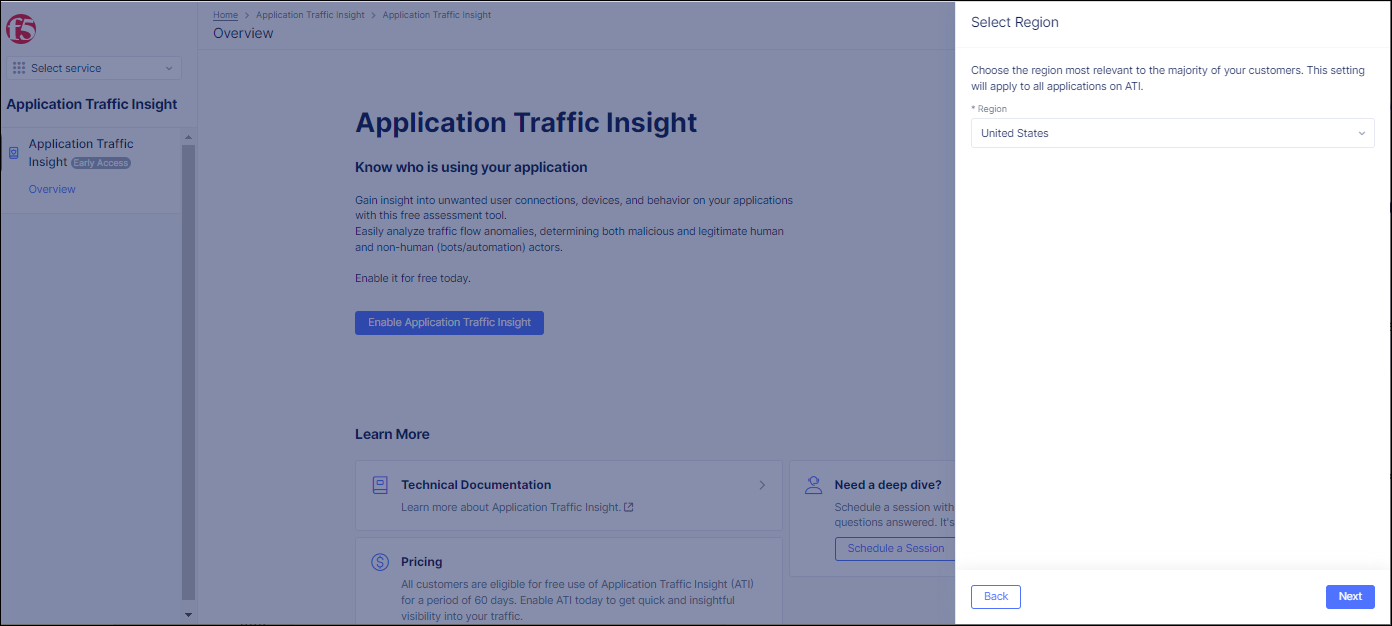
Figure: Select Region
- In the
Add Applicationpane, selectJS Tagfor the ATI deployment method.
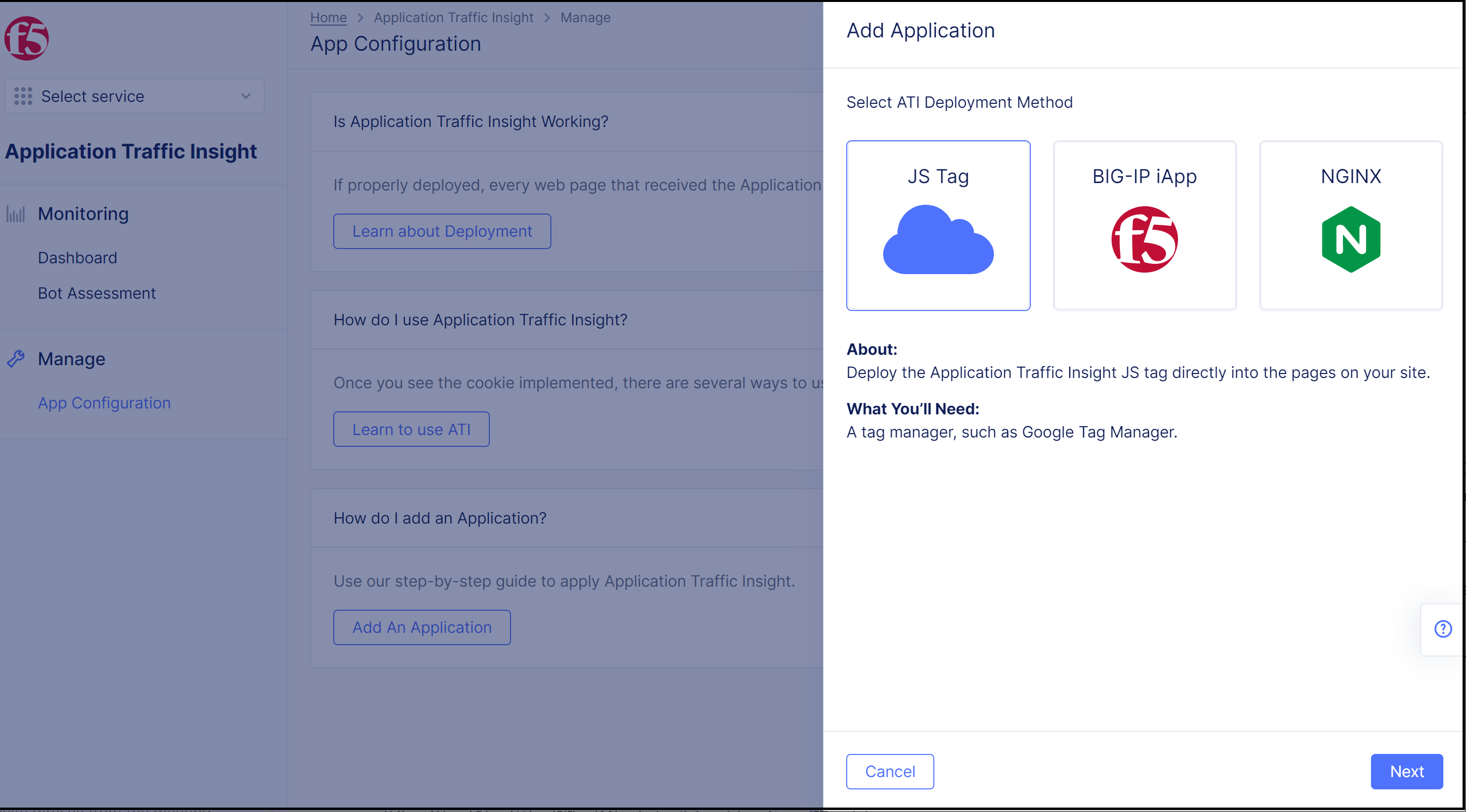
Figure: Select JS Tag Injection Method
- Click
Next. Instructions for enabling ATI with the JS tag appear in the pane.
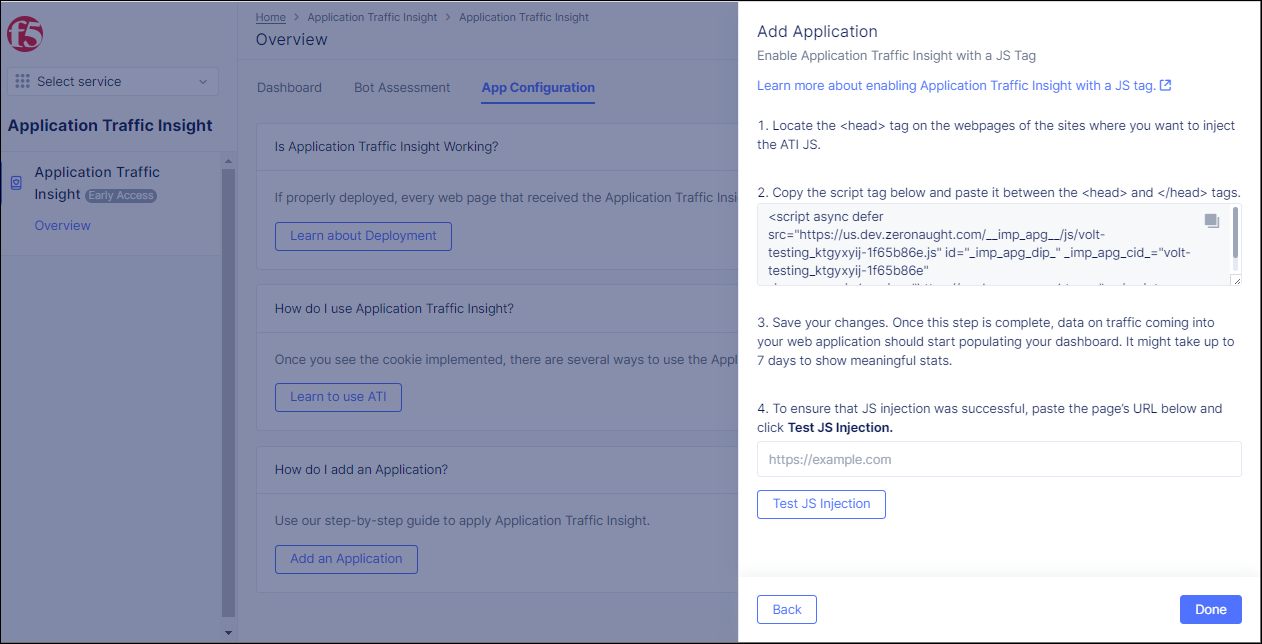
Figure: Instructions for Injecting JS
-
Follow the instructions for enabling ATI with the JS tag, and click
Donewhen finished.Note: F5 recommends injecting the ATI JS tag in all the web pages of your application. If for some reason a customer prefers not to inject on all web pages, F5 recommends at least injecting the JS on all login pages.
Step 2: Test the JS injection.
There are two ways to test if the JS tag injection was successful:
-
Add the URL of the application in the text field (Step 4 in the image shown in previous step) and click
Test JS Injection. If the injection was successful, then a green success checkmark will appear. -
Go to the application and right-click Inspect. In the
<head>section, locate the script tag. If the injection was successful, then the script tag should be present.
Click Done after verifying the JS injection.
Step 3: Monitor the ATI dashboard to view the device data.
- In the navigation menu on the left, go to
Monitoring>Dashboard.
Note: The dashboard requires a few hours before showing any meaningful data. For best results, wait for a few days.
- In the Dashboard, you can select to view data based on date ranges like 24 hours, 7 days, and 30 days. For details on Dashboard components, see View Data in the ATI Dashboard.