
Get Started with Distributed Cloud Console
Objective
This guide provides instructions on how to get started with the F5® Distributed Cloud Console (Console) and to set up user preferences based on the various work domain options available. The Console provides a customized view of workspaces that you will be using based on your work domain selection during the onboarding process. You can also update the settings at any point of time based on your requirements.
Using this guide, you can learn how to set up preferences while getting started, navigate the Console, access various workspaces, and update the preferences at any point of time.
Note: This guide assumes that you have administrator role and provides instructions accordingly. All workspaces are visible for all roles. Access to workspaces is defined based on the user roles. For information on various roles, see Roles.
Prerequisites
SaaS account in Console is required. If you do not have an account, sign up here.
Console and Workspaces
The Console is a portal that acts as frontend to the SaaS services and offers various configurable objects grouped into a number of workspaces. Using the Console, you can manage all configurations such as software, infrastructure, applications, users, and so on. You can choose which workspaces to expose in the Console user interface during the initial log in by selecting your work domains.
Although the user interface presents various workspaces, every configurable object is supported with the fundamental isolation of a tenant and then has further isolation in terms of namespaces. For more information, see Core Concepts.
Reset Console Login Password
If you forgot your password or just want to change it, use the Forgot Password? link on your login screen and follow the instructions.
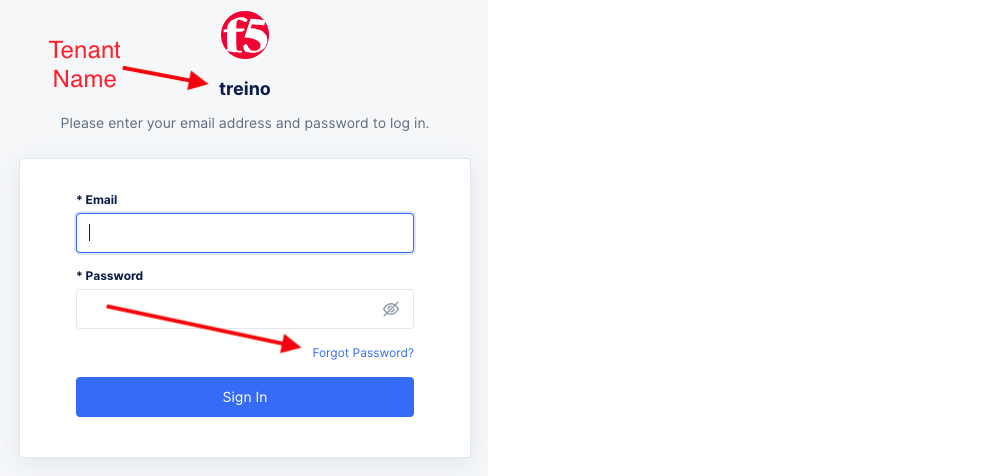
Figure: Password Page
Note: You can have access to multiple tenants using the same email account, and each tenant can have a different password. Therefore, make sure you are changing your password for the appropriate tenant.
Note: This only works if you use email/password for your login credentials, not Single Sign-On (SSO).
Detailed steps to reset your password
-
Go to the F5® Distributed Cloud Services website.
-
If you're not at the login screen, click on Login button on the right side of the top navigation bar.
-
Select your account type.
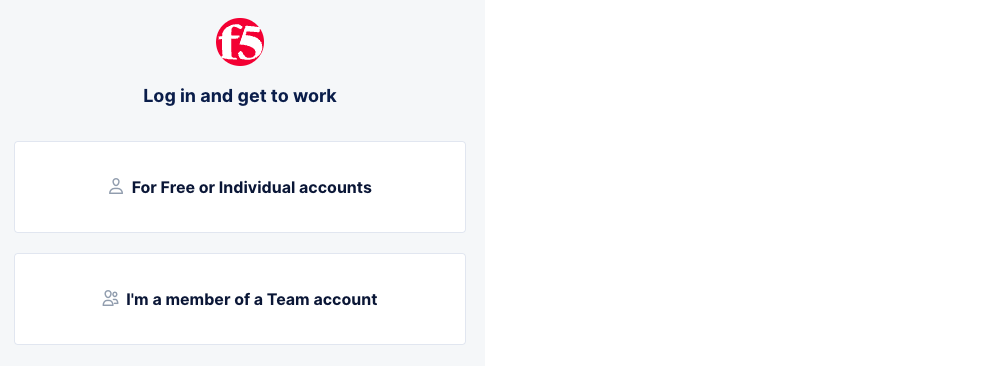
Figure: Select Account Type
For free or Individual accounts:
-
Select For Free or Individual accounts square to expand it.
-
Select Forgot Password?.
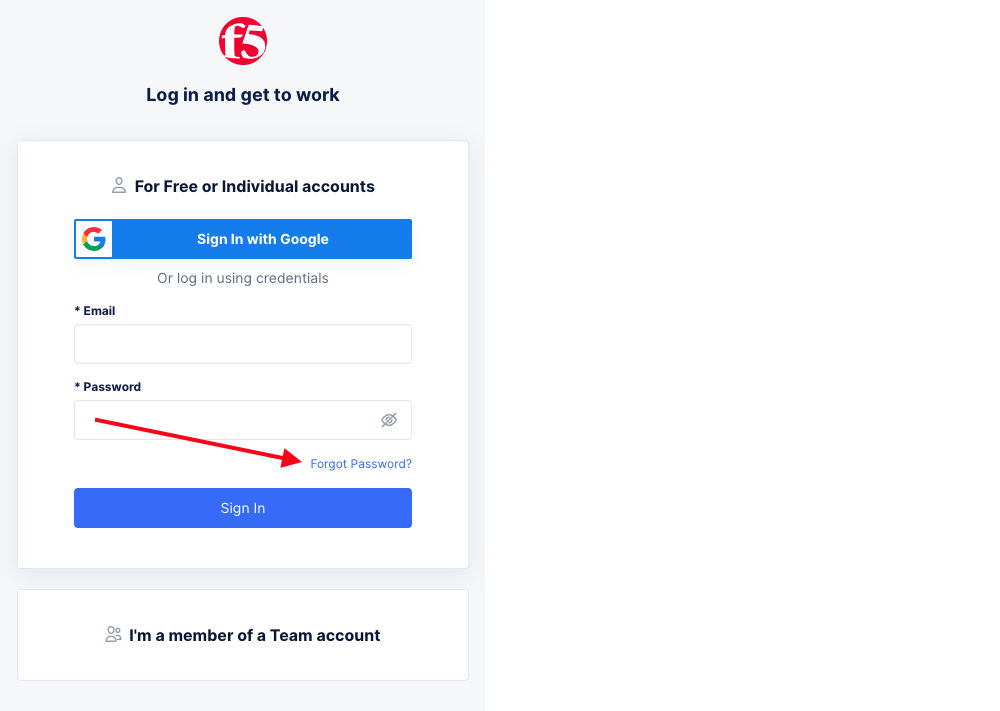
Figure: Password Page
For Team and Organization accounts:
-
Select I'm a member of a Team account square to expand it.
-
Enter your tenant/account name in the text box.
-
Select Next.
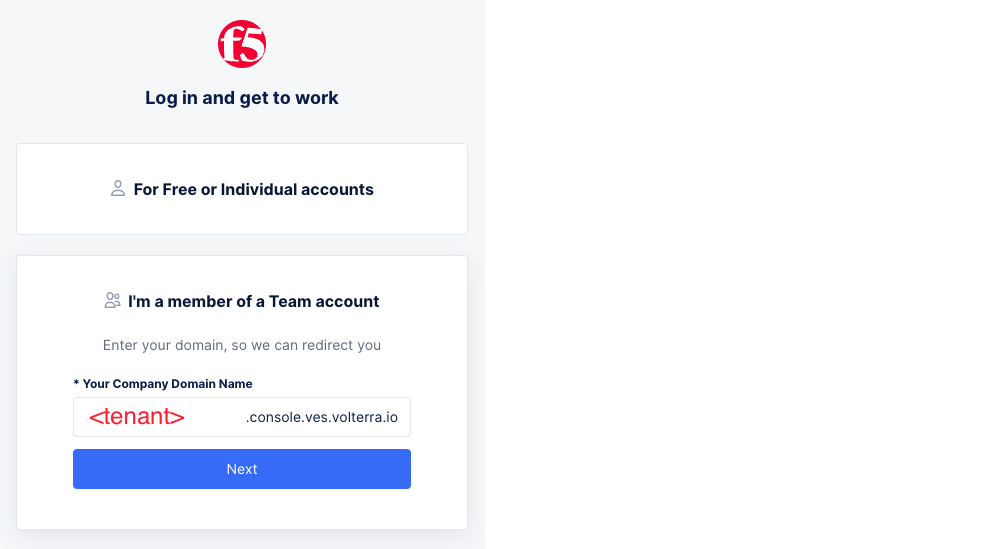
Figure: Tenant Selection
- Select Forgot Password? link.
Figure: Password Page
-
Enter your email in the text box and select Submit.
-
In the email you receive, select Reset credentials. The email will come from F5 Distributed Cloud with the subject Reset password. If you don't see the email, check your spam folder or try again making sure you are entering the correct email.
-
Enter your new password and then enter the same password in the Confirm Password field. Then click Submit.
If you are still having difficulties, please visit our support page.
OIDC reference guide for IdP administrators
Use the specifications below as a quick-reference guide when you configure the F5 Distributed Cloud application in Microsoft Entra ID or any custom identity provider (IdP).
| Type | F5 Distributed Cloud Specifications |
|---|---|
| Identity providers supported | Microsoft Entra ID, Google, Okta, or Custom |
| IdP discovery endpoint | Your well-known endpoint provided by the identity provider (for example, https://login.microsoftonline.com/{tenant-id}/v2.0/.well-known/openid-configuration) |
| Application type | Web |
| Client type | Confidential |
| OIDC grant type | Authorization Code (PKCE supported). F5 Distributed Cloud brokers as a server-side web client. |
| Client authentication method | Client Secret (client_secret_post or client_secret_basic) or Private Key JWT |
| Access token format | JWT |
| Token lifetime | Set by the identity provider. F5 Distributed Cloud honors the lifetimes issued by your identity provider. Standard short-lived access tokens are supported. |
| Refresh token | Optional |
| OIDC redirect / callback URL | Provided dynamically by the F5 Distributed Cloud console during step 2 of the setup process. |
| Post-logout redirect URL | Provided dynamically by the F5 Distributed Cloud console during step 2 of the setup process. |